
Setup
Connect WhatsApp to Growvisi
Ops manual for floor owners and the Meta admin: pick the right path, finish Complete, and apply the exact Meta fix without deleting assets.
8 min readUpdated 2026-08-21Floor owner · Meta Business admin
Chrome
Allow popups for growvisi.in. Other browsers often drop the Meta window.
Meta admin
The Facebook login must administer the business that already owns the number.
Right path
Match the card to the number you have — dedicated, phone app, or move from WATI.
Complete
Finish every Meta screen. Reporting a bug in Meta does not connect WhatsApp.
Growvisi is your Tech Provider. You keep Meta Business, the WhatsApp number, and conversation payment. Growvisi executes sales on that line. Almost every connect error is Meta number ownership — not a Growvisi outage. Knowledge you already saved stays.
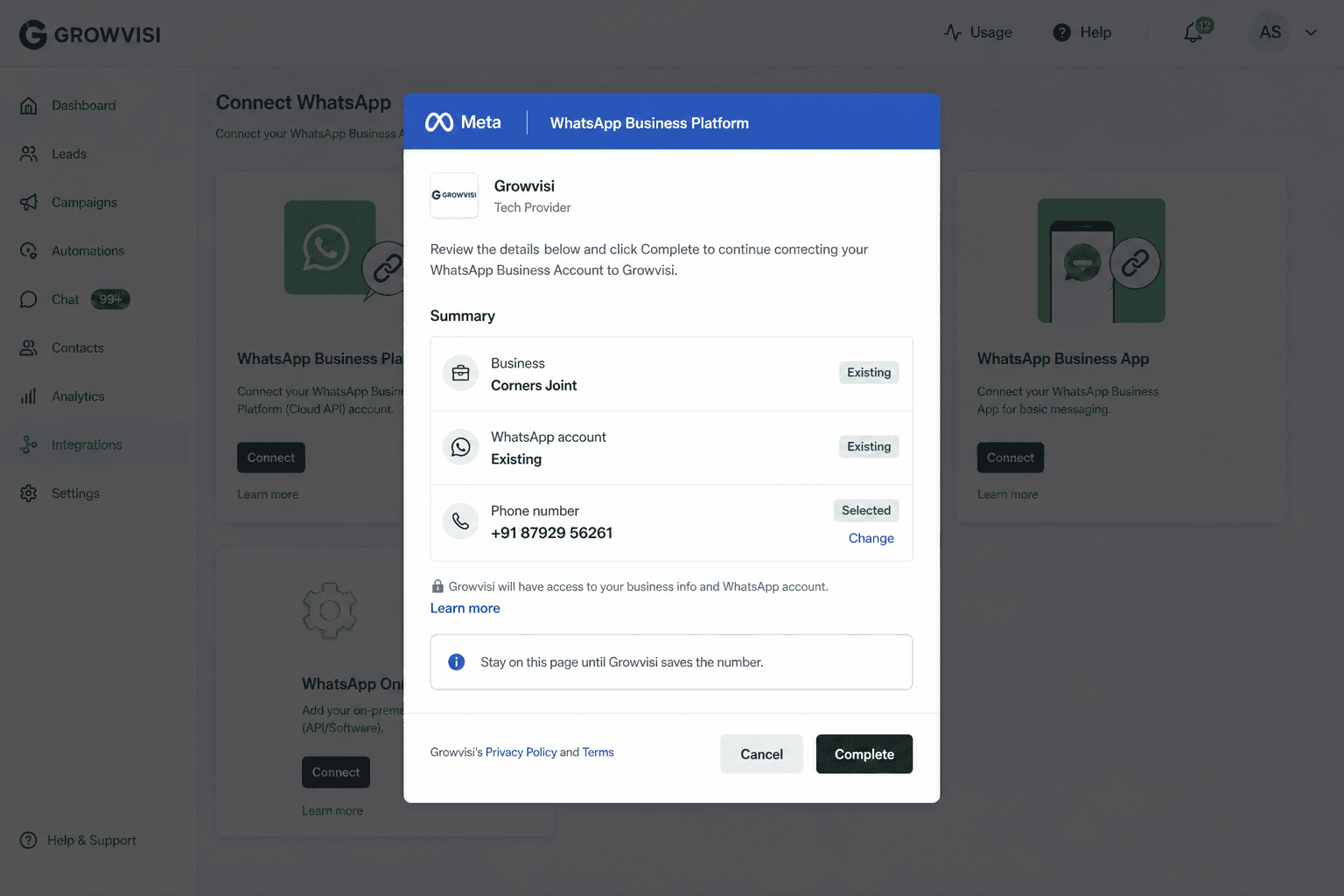
Use Chrome. Allow popups for growvisi.in. Sign in with a Facebook login that administers the business that owns the number. Stay on the Growvisi tab. On the last Meta screen click Complete — that is the only moment Growvisi can save the line.
Pick a path first
The wrong card is the most common Meta error. Match the number you actually have — then Continue with Meta.
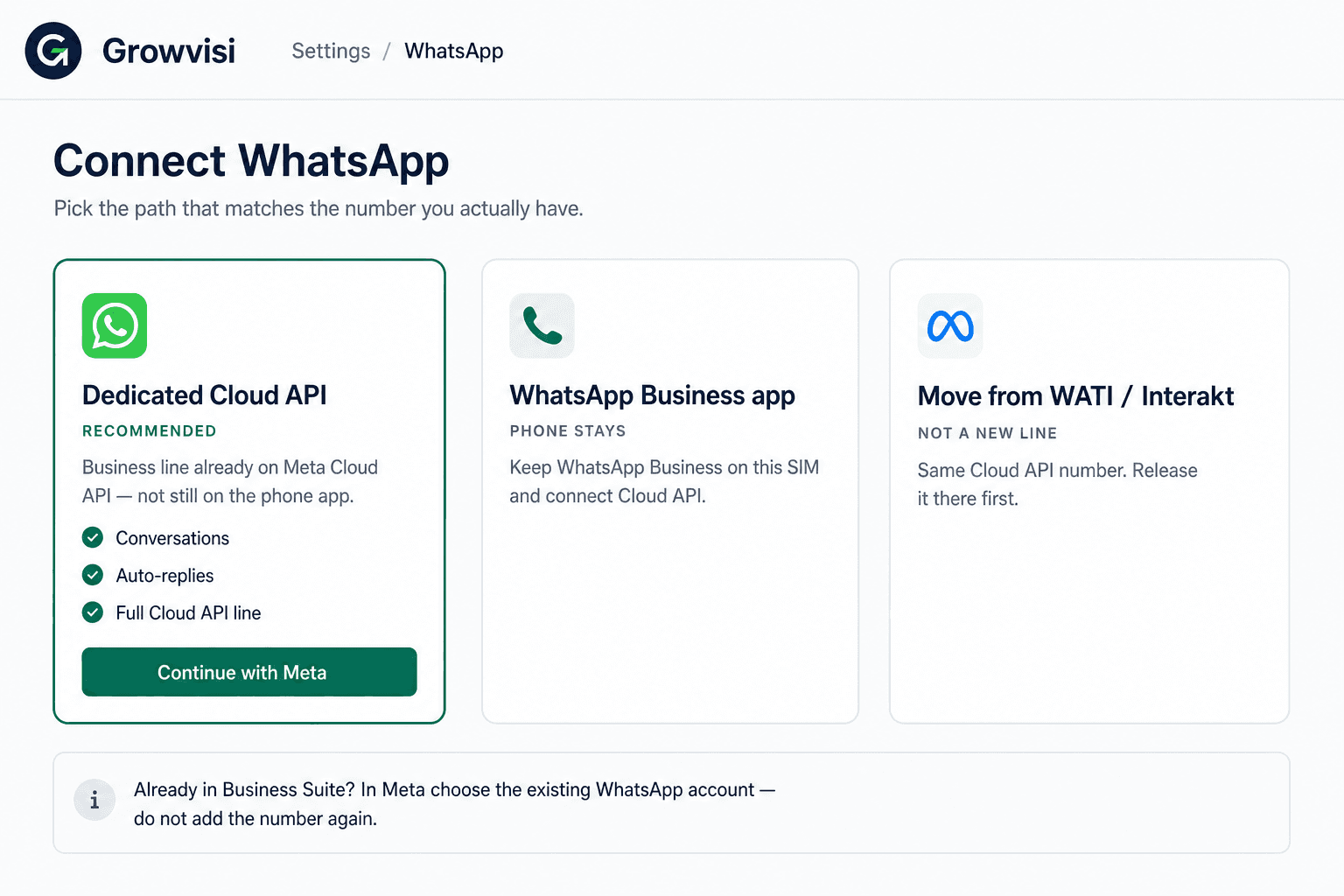
01Recommended
Dedicated Cloud API
The number is already on WhatsApp Business Platform / Cloud API (including WATI, Interakt, or Meta Business Suite). Do not use the phone-app card.
02Phone stays
WhatsApp Business app
The number lives on WhatsApp Business on the phone (briefcase icon) and is not yet on Cloud API. Personal WhatsApp cannot use this path.
03Not a new line
Move from WATI / Interakt
Same Cloud API number, leaving another provider. Release it there first, then Continue with Meta and select the existing number.
Finish on Complete
Growvisi is a Tech Provider. Meta only hands us the number after Complete. Stay on this tab — the save window is about 30 seconds.
Meta issues — jump to the fix
Match the error on screen. Do not delete WhatsApp or Meta assets to “reset” it.
| Issue | What to look for |
|---|---|
| Meta needs more WhatsApp Business app activity | Your phone number isn't eligible to connect to the WhatsApp Business Platform. More activity on the WhatsAp… |
| This number is still on WhatsApp on the phone | The number is already registered to a WhatsApp account, or still on the WhatsApp Business app (#2655122). |
| This WhatsApp is already in Meta Business Suite | This phone number already exists in your list of phone numbers — or Asset already belongs to this Meta Busi… |
| Number is linked to another WhatsApp provider | This account is already shared with another partner (#2655049 / #2655093), or the phone-app still shows a B… |
| Meta window did not finish | Popup blocked, timed out, closed early, or Report a bug / Was this helpful. |
| Phone verification failed | OTP could not be sent or verified, or you guessed / requested the code too many times. |
| You need Meta Business admin access | User does not have permission to create WhatsApp Business Accounts. |
| Add a payment method in Meta | Payment method required, or payment account disabled. |
| Display name was rejected | Your verified name violates WhatsApp guidelines. |
| Phone number limit on Meta | You have already linked the maximum number of phone numbers, or the maximum WhatsApp accounts. |
| Already connected in another Growvisi workspace | This WhatsApp number is linked to a different Growvisi organization. |
| Meta setup is temporarily unavailable | Feature Unavailable — Facebook Login is currently unavailable for this app… |
| Meta login expired | Authorization code expired, or Growvisi could not save the number after Complete. |
Number eligibility
Number eligibility · 01
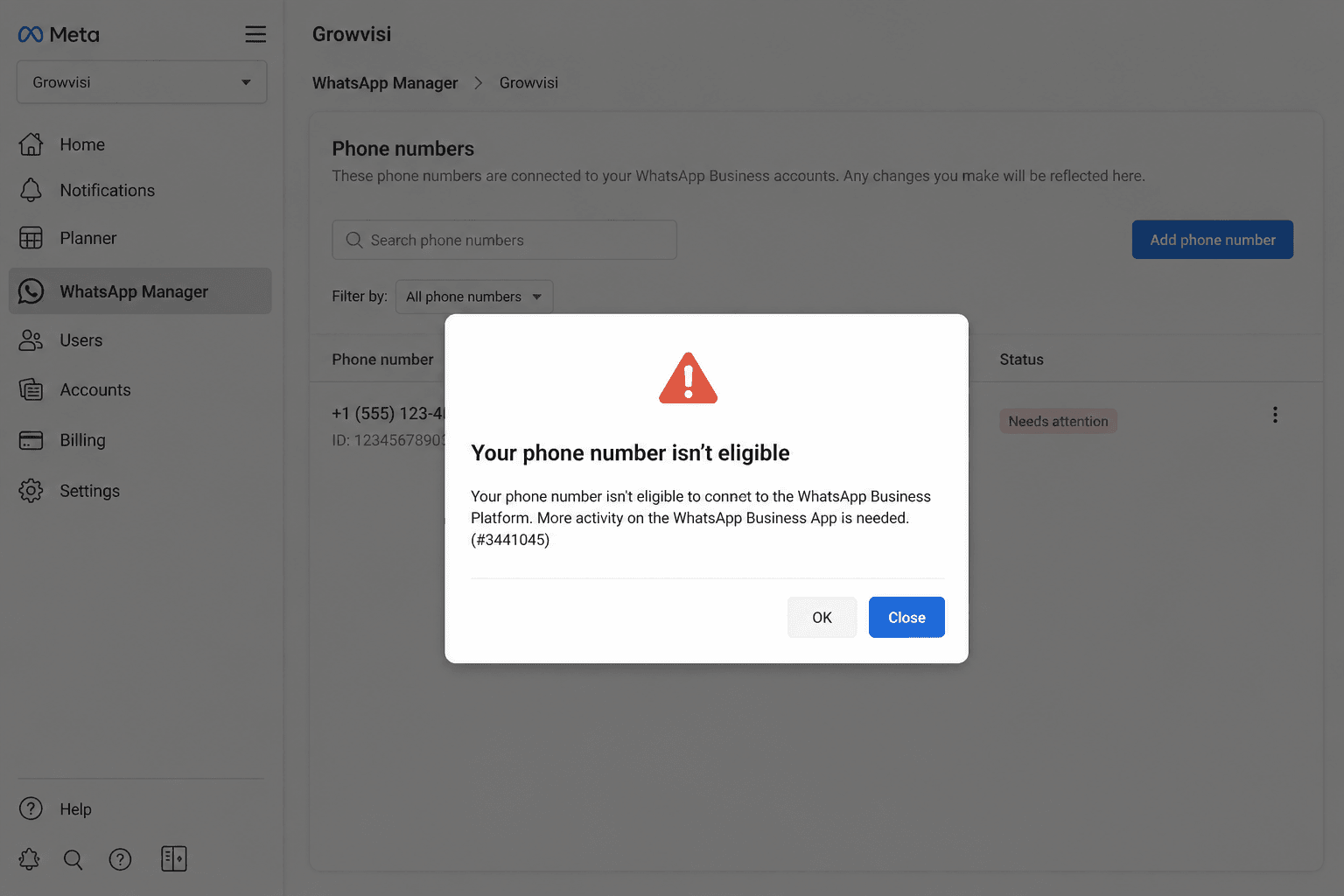
Meta needs more WhatsApp Business app activity
What Meta shows
Your phone number isn't eligible to connect to the WhatsApp Business Platform. More activity on the WhatsApp Business App is needed… (#3441045)
Coexistence only enrolls a WhatsApp Business app number with real customer chats. A new SIM, a quiet line, personal WhatsApp, or a number you deleted and re-registered will fail. Growvisi cannot override this.
Exact fix
- Confirm it is WhatsApp Business (briefcase icon), not personal WhatsApp.
- Complete the business profile: photo, display name, address, hours.
- Send and receive real customer chats for at least a week. Do not delete the WhatsApp account.
- Update WhatsApp Business, then retry the WhatsApp Business app card on Growvisi.
- Need a line today: use a different number that already has Business-app history, or a dedicated Cloud API number that is not on the phone.
- Do not: Uninstall WhatsApp to reset eligibility
- Do not: Treat this as a WATI release problem
Number eligibility · 02
This number is still on WhatsApp on the phone
What Meta shows
The number is already registered to a WhatsApp account, or still on the WhatsApp Business app (#2655122).
Dedicated Cloud API cannot take a SIM that is logged into WhatsApp. That is expected.
Exact fix
- Go back and choose WhatsApp Business app, then Continue with Meta — chats stay on the phone.
- Only delete WhatsApp on that SIM if you want a dedicated Cloud API line and accept losing those phone chats. Wait about 3 minutes, then retry Dedicated Cloud API.
- Do not: Delete the app if you still need the phone inbox
Ownership & other providers
Ownership & other providers · 01
This WhatsApp is already in Meta Business Suite
What Meta shows
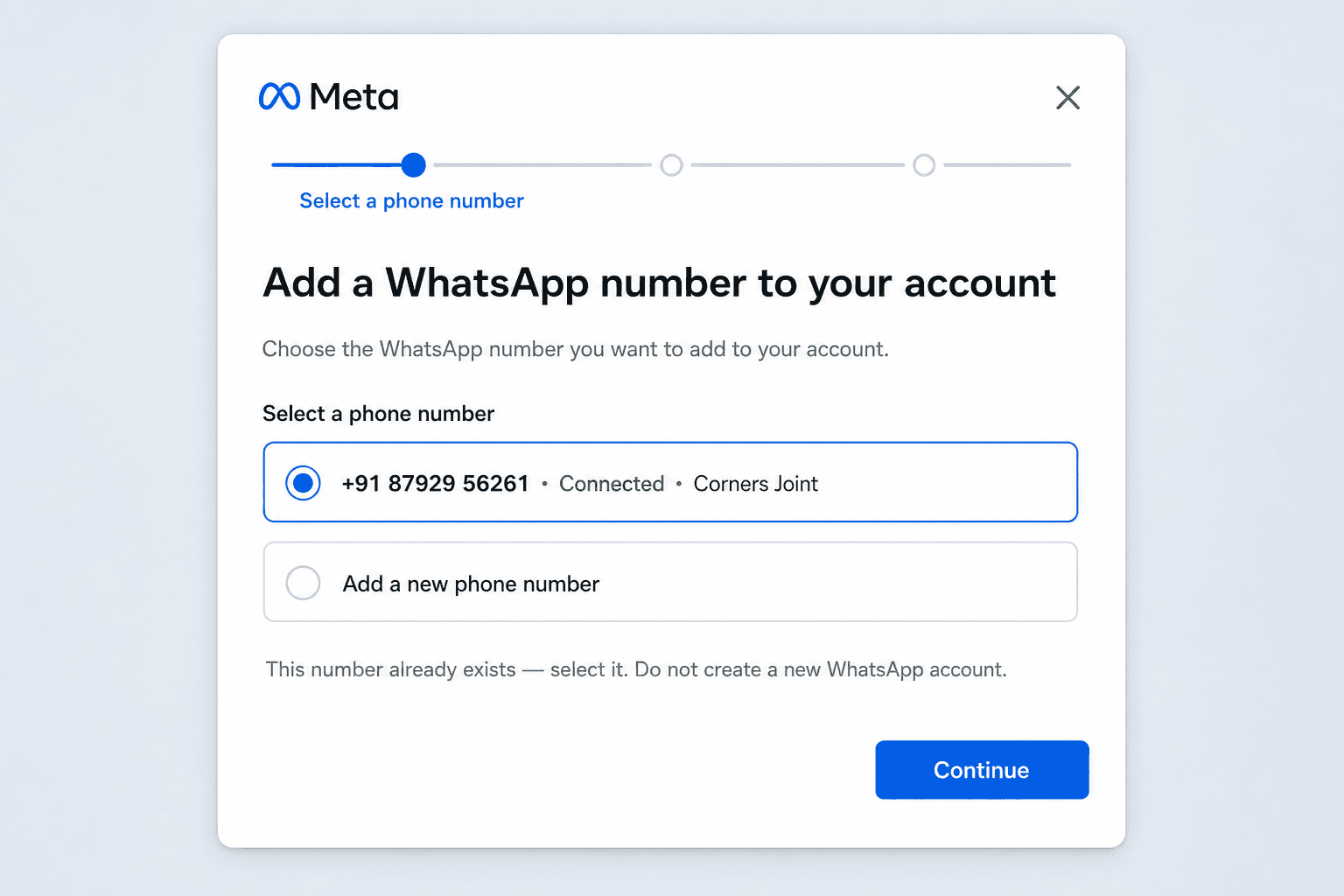
This phone number already exists in your list of phone numbers — or Asset already belongs to this Meta Business Suite — or the Add-a-number screen is empty (#1690061).
You tried to create a new WhatsApp account for a line Meta already has. The number appears only when you pick the existing account.
Exact fix
- Continue with Meta using the Facebook login that is admin of the business that already has this number.
- Choose the existing Meta Business — do not create a new one.
- Choose the existing WhatsApp account — do not create a new one.
- Select that number. Do not type it as a new line.
- If you used the phone-app card, switch to Dedicated Cloud API first.
- Do not: Remove the number from Business Suite to make Add new work
Ownership & other providers · 02
Number is linked to another WhatsApp provider
What Meta shows
This account is already shared with another partner (#2655049 / #2655093), or the phone-app still shows a Business platform.
Meta still has this line on WATI, Interakt, AiSensy, Gallabox, or another platform.
Exact fix
- In the previous provider, disconnect / release this WhatsApp number.
- In WhatsApp Manager → Phone numbers, turn off two-step verification if it is on.
- Wait a few minutes (up to 15 minutes if you disconnected from the phone app).
- On Growvisi choose Move from WATI/Interakt (or Dedicated Cloud API) and Continue with Meta with the same number.
- If Meta lists the number, select it. If Meta says it will migrate, accept and finish.
- Do not: Delete the WhatsApp Business Account
- Do not: Create a second WhatsApp account for the same number
Ownership & other providers · 03
Already connected in another Growvisi workspace
What Meta shows
This WhatsApp number is linked to a different Growvisi organization.
One Cloud API line can only belong to one Growvisi workspace at a time.
Exact fix
- Open the other workspace → Settings → WhatsApp → Disconnect.
- Return here and Continue with Meta with the same number.
- If you do not know which workspace owns it, email it@growvisi.com with the phone number and this workspace name.
- Do not: Delete the number in Meta to force a reconnect
Meta window
Meta window · 01
Meta window did not finish
What Meta shows
Popup blocked, timed out, closed early, or Report a bug / Was this helpful.
Reporting a bug in Meta does not connect the number. Growvisi only saves the line after you click Complete.
Exact fix
- Allow popups for growvisi.in in Chrome.
- Use a Meta login that administers the WhatsApp Business Account.
- Stay on this Growvisi page. Finish every Meta screen. Click Complete.
- Do not: Delete Meta assets after a cancelled popup
Meta window · 02
Meta login expired
What Meta shows
Authorization code expired, or Growvisi could not save the number after Complete.
Meta’s one-time code lasts about 30 seconds after Complete.
Exact fix
- Click Continue with Meta again.
- Finish the screens without pausing after Complete.
- Stay on the Growvisi page until the number saves.
- Do not: Leave the tab immediately after Complete
Admin, payment & name
Admin, payment & name · 01
You need Meta Business admin access
What Meta shows
User does not have permission to create WhatsApp Business Accounts.
The Facebook login is not an admin on the business that owns the number.
Exact fix
- Ask a Meta Business admin to invite you as Admin, or
- Have that admin click Continue with Meta on Growvisi.
- Do not: Create a new Meta Business just to bypass permissions
Admin, payment & name · 02
Phone verification failed
What Meta shows
OTP could not be sent or verified, or you guessed / requested the code too many times.
Meta limits SMS and voice checks. IVR and virtual numbers often fail.
Exact fix
- Stop requesting codes. After too many guesses Meta can lock the number for about 12 hours.
- Confirm the SIM can receive SMS or a voice call.
- After the wait, Continue with Meta and select the existing number to verify again.
- Do not: Keep requesting new codes — that extends the lock
Admin, payment & name · 03
Add a payment method in Meta
What Meta shows
Payment method required, or payment account disabled.
WhatsApp conversation charges stay on your Meta account. Growvisi does not resell messages. Razorpay is only for the Growvisi plan.
Exact fix
- In WhatsApp Manager, add a payment method for this WhatsApp Business Account.
- Return to Growvisi and Continue with Meta again if Complete was blocked.
- Do not: Add a card in Growvisi billing for WhatsApp conversation fees
Admin, payment & name · 04
Display name was rejected
What Meta shows
Your verified name violates WhatsApp guidelines.
Meta reviews the name customers see in WhatsApp. It must match your public brand.
Exact fix
- Use the brand name on your website and site board — not ALL CAPS, emoji, or “Official”.
- If a review is already in progress, wait. Do not keep editing.
- Resubmit from WhatsApp Manager → Phone numbers if Meta asked you to change it.
- Do not: Use a generic name like Offers or WhatsApp Support
Admin, payment & name · 05
Phone number limit on Meta
What Meta shows
You have already linked the maximum number of phone numbers, or the maximum WhatsApp accounts.
Meta caps how many numbers sit on a business. Growvisi plan limits are separate.
Exact fix
- Select an existing number instead of adding a new one.
- Only remove a line in WhatsApp Manager if you are sure it is unused.
- To raise Meta’s cap, use Meta Business Support.
- Do not: Delete a live customer line to make room
After the number connects
Conversations still empty
Message the business number from a personal phone. If you used WhatsApp Business app, keep that app open so history can sync.
Cannot send templates yet
Check display name and payment in WhatsApp Manager. Pending name review can block outbound.
Still stuck?
Email it@growvisi.com with a screenshot of the Meta popup — do not delete Meta assets first.